
DJI Osmo Mobile 6 Review – Is It Worth It for Road Trips?
We’ve always been more into photography than video. Making movies just wasn’t our thing. But over the past few years, that’s started to change—especially during our road trips. Smartphones have come a long way. Their video quality now rivals cameras we used to carry years ago. And the best part? Our phone is always with us, ready to shoot wherever we are. That’s why we decided to give the DJI Osmo Mobile 6 a try. In this review, we’ll share our honest thoughts—what we like, what we don’t, and whether it’s worth bringing on your next adventure.
This article may contain affiliate / compensated links. For full information, please see our disclaimer here.
DJI Osmo Mobile 6 Review – Our Experience
We usually record videos with our smartphone, then mix that footage with clips from our DJI Mini 3 Pro drone or DJI Osmo Pocket camera.
But the phone videos never felt quite right—mostly because of shaky shots and poor stabilization.
And if you’ve ever tried taking a good selfie video with your phone, you know the struggle. You frame the shot… but then reaching for the record button messes it all up. That’s where the DJI Osmo Mobile 6 made a big difference for us.
One more reason we bought this gimbal? You can’t fly drones in most U.S. national parks, wilderness areas, national monuments, or even many state parks. We still wanted to film in those places—so pairing our phone with the Osmo Mobile 6 was the perfect solution.
Just to be clear: this is not a sponsored review. We bought the Osmo Mobile 6 ourselves on Amazon. After a few months of road trips and testing, we’re ready to share our honest opinion.
Was it worth it? Keep reading to find out.
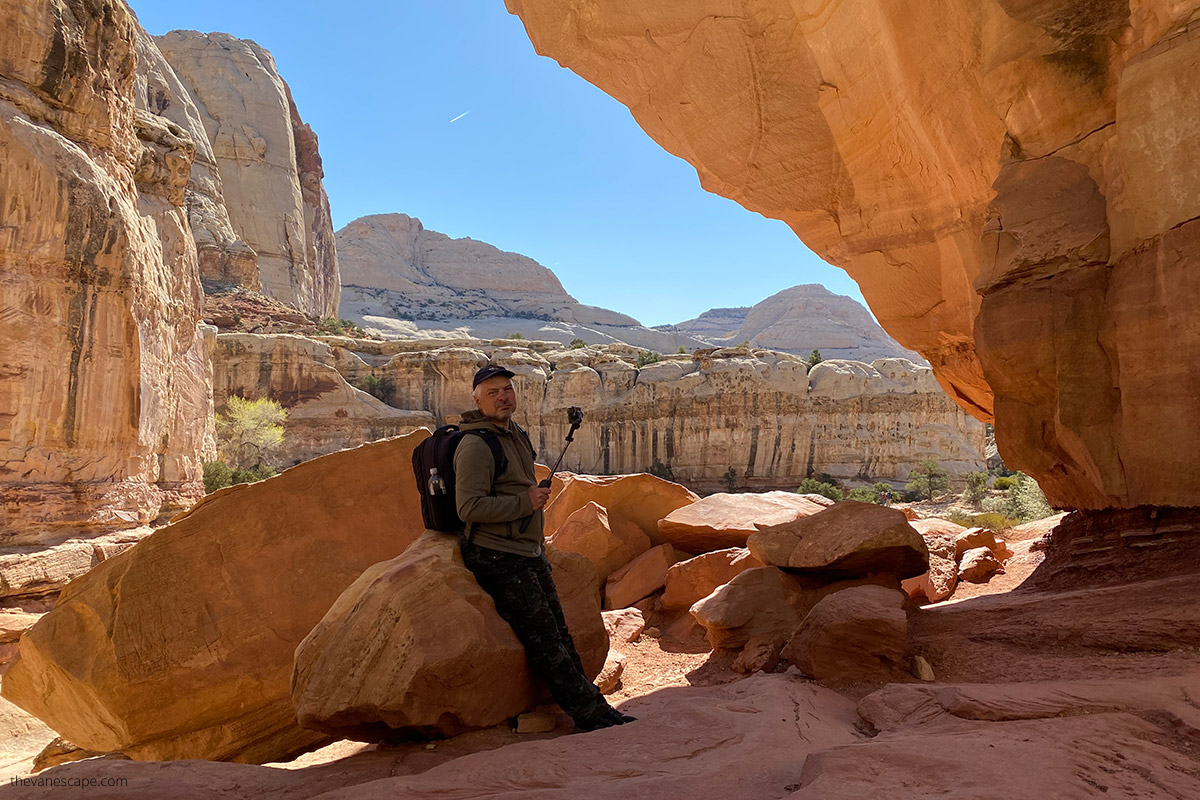
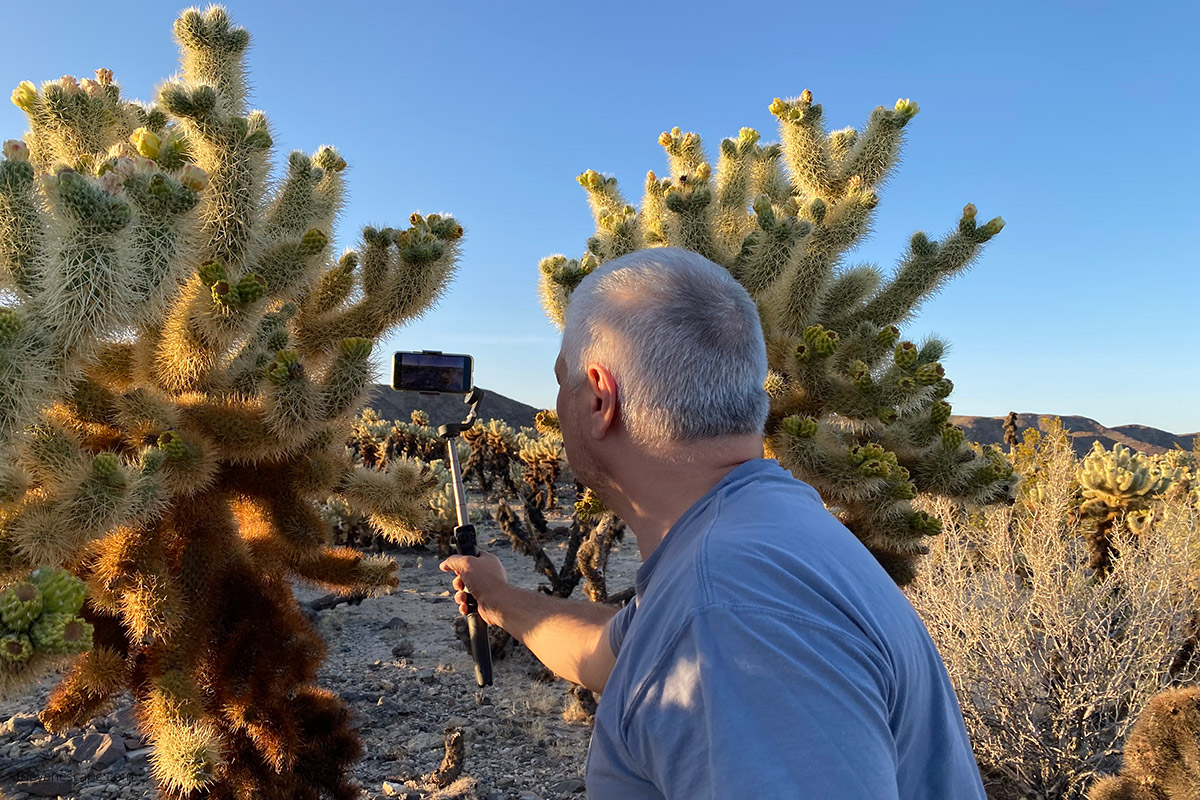
In the photos below, Chris is using the DJI Osmo Mobile 6 to shoot short clips at Joshua Tree National Park in California and Capitol Reef in Utah. A bit further down, you’ll find our very first video made with this stabilizer (go easy on us—we’re still learning!).

DJI Osmo Mobile 6 Review- Specs at a Glance

DJI Osmo Mobile 6 – Design & Features
First Impressions
At first, I was a little disappointed with the construction. Folded up, the Osmo Mobile 6 looks compact and sleek. But unfolding it felt a bit awkward. I wasn’t sure if I was doing it right—and I honestly worried I might break something.
It felt fragile at first. But after opening it a few times, I got the hang of it. Still, I think the instructions could be a lot clearer. It’s not very intuitive in the beginning.
What’s in the Box
The Osmo Mobile 6 comes in a great little package. You get the gimbal itself, which folds down small enough to fit in a jacket pocket. There’s also a magnetic phone clamp, which snaps onto the gimbal easily.
Another piece is the small tripod that screws into the bottom. At first, I didn’t think I’d use it. But since the gimbal needs to be calibrated regularly, I found myself using it all the time. Everything fits nicely into the included carrying bag, which makes it easy to pack for road trips.
Buttons & Controls
Once you get used to the controls, they’re pretty user-friendly. You mainly use three fingers to manage everything since the gimbal has buttons on the front, back, and side.
Here’s a quick breakdown:
- Side wheel (on the left) for zoom and focus. It takes practice, but it works well enough.
- Front panel has a power/mode button, a small joystick for moving the gimbal, a record/shutter button, and a function switch.
- Back trigger gives you quick control while shooting.
There’s also a tiny status screen showing the current mode and a USB-C port for charging.
One more thing—the gimbal extends! You can pull out an 8.5-inch telescopic rod, and tilt the phone from 0 to 90 degrees. That flexibility really helps when framing shots on the go.
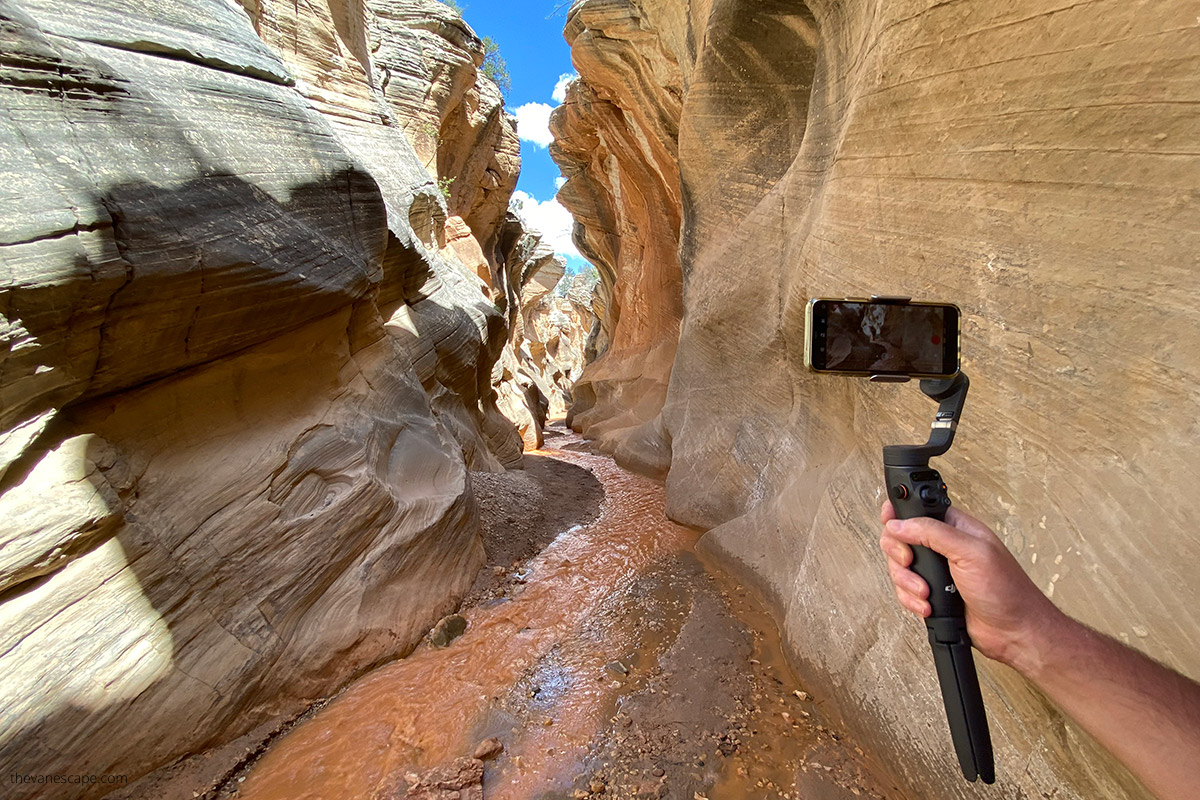
The gimbal stabilizer worked great for short films in slot canyons in Utah. We used it for Zebra Slot Canyon and Willis Creek Slot Canyon.
Ergonomics of the DJI Osmo Mobile 6
The device’s ergonomy is rather good, but it takes time to learn to use all the buttons, dials, and switches intuitively. The only problem with the side wheel is that it could be more precise; everything else is natural and easy The DJI Osmo Mobile 6 feels good in your hand. The overall ergonomics are solid. But it does take some time to get used to all the buttons and controls. Once you learn them, most functions become pretty easy to use.
The only part that could be better is the side wheel. It’s not very precise, especially when zooming or focusing. That said, the rest of the controls work well once you get the hang of them.
Quick Guide to the Buttons
Here’s a breakdown of the main buttons and what they do:
- M Button – Powers the gimbal on or off. You can also turn it on/off by folding or unfolding the device.
- Side Wheel – Press once to switch between zoom and focus. Then turn the wheel to zoom or fine-tune focus, depending on the mode.
- Joystick – Lets you move the phone up/down and side to side (pan and tilt).
- Shutter/Record Button – Press once to snap a photo or start/stop recording. Hold to take burst photos (doesn’t work in video mode).
- Switch Button – Press once to flip between front and rear camera. Press twice to change from portrait to landscape mode. Press three times to switch between photo and video mode.
- Trigger (Back Button) – This one does a lot. You can:
- Start or stop Active Track 5.0
- Recenter the gimbal
- Adjust follow speed for smoother motion
One Major Downside
One thing I really don’t like is the phone mount. It feels unstable. If you move your phone even slightly in the clamp, the gimbal often needs recalibration.
It’s not a hard process, but it’s annoying. You’ll need a tripod, and it takes about two minutes each time. It reminds me of the old drone calibration days—not fun when you’re trying to film quickly on a road trip.
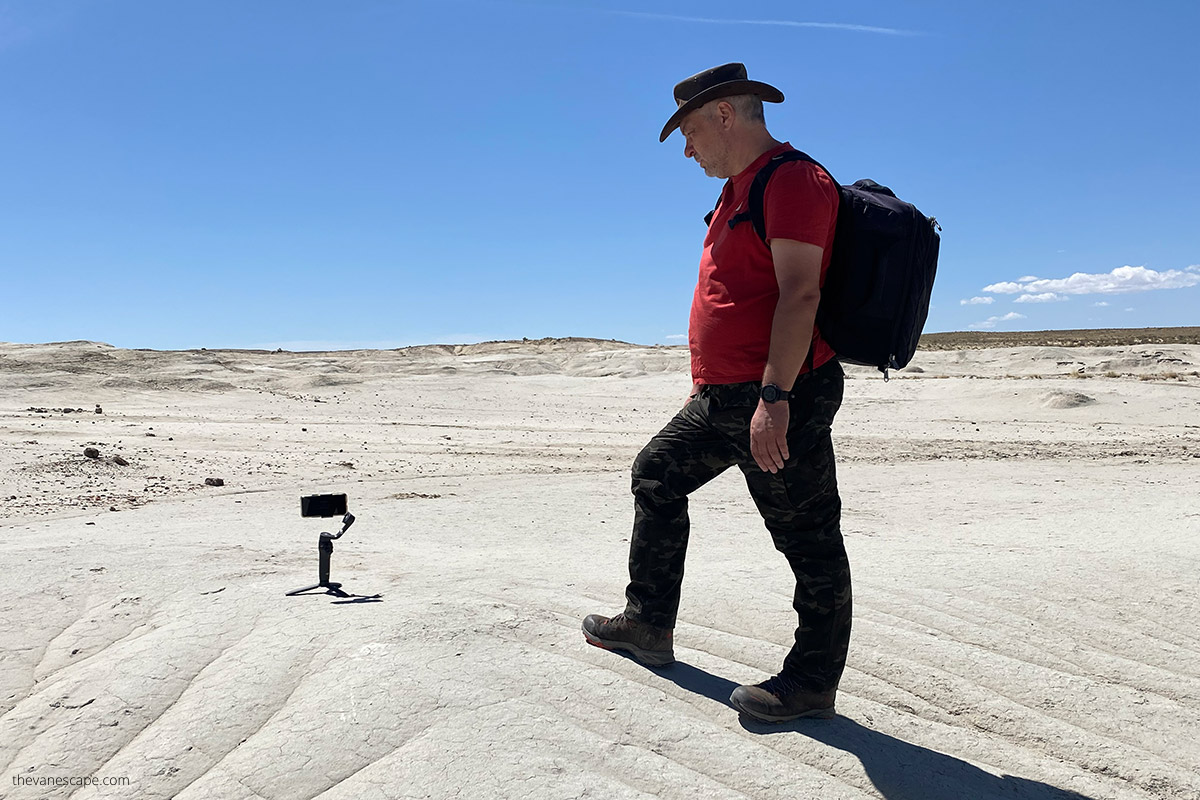
In the photos below, Chris uses a DJI Osmo Mobile 6 for short videos in the Ah-Shi-Sle-Pah Wilderness Area in New Mexico. Since drones are prohibited in wilderness areas, we bought this gimbal stabilizer for short videos of these surreal places.

DJI Osmo Mobile 6 Shooting Modes
The DJI Osmo Mobile 6 has a lot of features, and honestly, it can feel a bit overwhelming at first. If you’re like me and new to this kind of device, it takes time to learn. I was hoping for something easier—more like the experience I had with the DJI Mini 3 Pro. But this gimbal has a steeper learning curve.
It took me nearly two months of practice to start feeling comfortable using it. And even now, I still sometimes need to check how to do certain things.
Basic Operating Modes
The Osmo Mobile 6 has four main handling positions:
- Upright Mode
This is the default mode. Just hold the gimbal normally and press the trigger twice to center the phone. I used this mode the most when I first started learning how the device works. - Side Grip Mode
Rotate the gimbal 90 degrees to the left or right and press the trigger twice. I don’t use this mode much—it’s hard to find a good reason for it. - Low Position Mode
This one’s a bit tricky. It’s for shooting from low angles. You’ll need to extend the telescopic rod and adjust the gimbal angle. Hold the grip horizontally so your phone points straight ahead but stays low to the ground. - Underslung Mode
Turn the gimbal upside down and press the trigger twice to re-center the phone. It’s good for capturing moving subjects from below, but I don’t use this one often either.
The photo below is our selfie taken using this gimbal stabilizer during the Hickam Bridge Hike in Capitol Reef. Finally, we have a good perspective. We enjoy this feature of DJI Osmo Mobile 6.

Gimbal Control Modes
Then it gets more complex. The Osmo Mobile 6 also has four gimbal movement modes. Here’s what they do:
- Follow Mode
The phone smoothly follows your hand movements (both up/down and left/right). It’s good for general movement shots. - Tilt Locked
The phone only pans left and right—it won’t tilt up or down. Great for side-to-side movements or walking in an arc. - FPV Mode
This one mimics a first-person view. All axes (pan, tilt, and roll) follow your hand. It’s best when you want that immersive, “you are there” feel. - SpinShot Mode
This rotates the phone in a full 360-degree spin. It’s more of a special effect mode. I haven’t found much use for it yet, but it could be fun for creative clips.
And yep—there’s more.
Next up is the DJI Mimo app, which adds even more modes and features. I’ll break those down in the next section.
But before you read on, we want to show off our first-ever video shot with the Smartphone Gimbal Stabilizer. Please look to see the smoothness of the recording with the stabilizer.
DJI Mimo App – Is It Worth Using?
The DJI Mimo app is a key part of using the Osmo Mobile 6. Yes, you can use the gimbal without the app—but you’ll miss out on a lot of features that really make a difference.
Two of the most useful tools in the app are calibration and Academy.
- Calibration helps make sure the gimbal works smoothly, especially after adjusting or repositioning your phone.
- Academy is super helpful when you’re just starting out. It includes built-in tutorials and manuals that show you how to use each function and get the best results from your videos. We found it helpful when we were learning the basics.
The app also includes an AI Editor that can quickly turn your clips into ready-to-share videos. If you prefer more control, there’s also a manual editor where you can do everything yourself.
Mimo App Shooting Modes
But here’s where things get even more complex—Mimo also unlocks a bunch of extra shooting modes. Let’s go through them:
- Hyperlapse. Takes a moving timelapse while you walk or pan the camera.
- Timelapse. Lets you create beautiful timelapse shots. You can set it to pan left to right, right to left, stay still, or follow a custom path (you can define up to 4 points for the gimbal to follow).
- DynamicZoom. A zoom-in or zoom-out effect on your subject—kind of like the famous Hitchcock effect.
- Slow Motion. Our favorite! You can shoot slow-motion video at 4x or 8x speed—if your phone supports it. It works great with most modern iPhones. Some Android phones may not support this mode, so be sure to check DJI’s compatibility list before buying.
- Video. Basic video recording.
- Photos. For regular photo shots. If you press and hold the shutter, you can take burst photos (not available in video mode).
- Pano. Takes panoramic shots using multiple images. Choose from 3×3 grid, 240°, or CloneMe mode for a fun effect.
- Story. Offers ready-made templates to help you quickly shoot and edit stylish video clips.
We especially love the Slow Motion mode. Just a heads-up—it maxes out at 1080p on iPhones, and most Android phones don’t hit that resolution. So, if slow motion is a priority, it’s a better buy if you’re using an iPhone. Here is a Phone Compatibility List.
And finally… here’s a quick laugh: that’s Chris in the photo below with his shiny new Osmo Mobile 6—right before he accidentally stepped on a cactus. Yep, the spines stuck in his foot. But hey, that’s a story for another day.
ActiveTrack 5.0 – Our Favorite Feature
Out of all the features the DJI Osmo Mobile 6 offers, ActiveTrack 5.0 is hands down our favorite. It’s the one that really makes your videos look professional—without needing years of filming experience.
With ActiveTrack, the gimbal automatically follows your subject and keeps it in focus. It does the hard part for you, and the result is smooth, clean footage every time. We absolutely love this feature.
If you already use other DJI products, like drones, you can combine footage from different devices for incredible video edits. It’s perfect for travel videos, especially if you like mixing drone shots with gimbal clips.
How to Use ActiveTrack 5.0
It’s super easy. Just drag a box on your phone screen around your subject. When it turns green, ActiveTrack is on and tracking. To stop it, tap the little “X” in the corner. That’s it!
Even better—you can use hand gestures to start and stop recording, which is great if you’re filming yourself and the gimbal is on a tripod.
The photos below were taken in New Mexico. We would’ve loved to fly our drone there, but drones are banned in wilderness areas. So instead, we used the Osmo Mobile 6 and our smartphone to shoot videos in these stunning, alien-like landscapes. Want to see how it turned out? Check out our videos in these articles: Alien Throne and Bisti Badlands.


DJI Osmo Mobile 6 Accessories
You don’t need a ton of gear to use the DJI Osmo Mobile 6. It works great on its own. But if you want to level up your videos—especially in a studio or low light—there are a couple of accessories worth checking out.
DJI OM Fill Light
The DJI OM Fill Light Phone Clamp is perfect for low-light shooting. It attaches magnetically, so setup is easy. The built-in LED lights have three brightness levels and three color temperatures. That means you can get soft, natural-looking light, no matter where you’re filming.
DJI Mic
If you want your sound to match your video quality, the DJI Mic is a great addition. It’s a dual-channel wireless microphone system with two mics, a receiver, and a portable charging case. The audio is crisp, clean, and much better than what your phone can capture on its own. It’s ideal if you’re doing voiceovers, interviews, or any kind of vlogging.
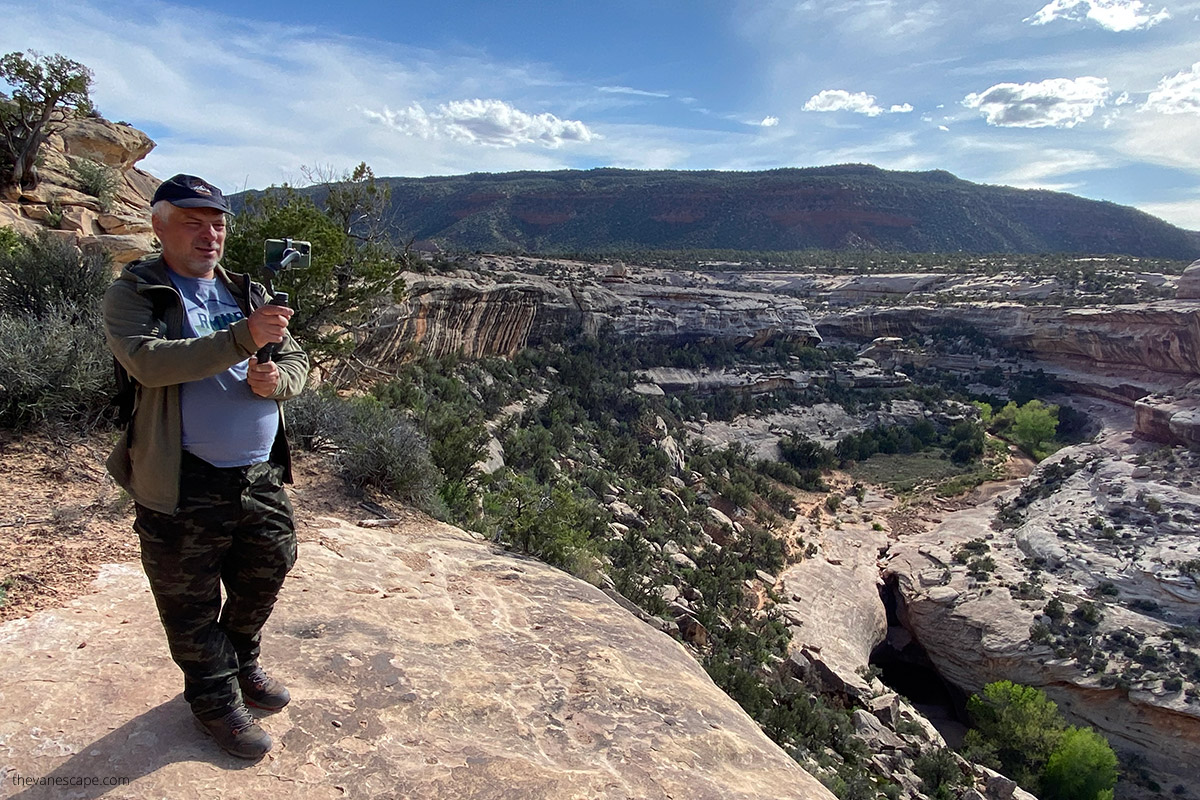
Below is a photo of Chris recording a quick video with the DJI Osmo Mobile 6 at Natural Bridges National Monument in Utah.

Who Is the DJI Osmo Mobile 6 For?
After using the DJI Osmo Mobile 6 for a few months, we’ve been asking ourselves—who is this gimbal really for?
It’s small, lightweight, and easy to pack. That makes it great for travel, especially road trips. You can pull it out quickly when you need to film. But the learning curve is real. Using all the features takes time and patience. If you want top-quality footage, you need to know what you’re doing.
A big plus is that you can shoot with your phone. That keeps your gear minimal and saves money. But there’s also a downside—what if someone calls while you’re recording? You might have to start over. That’s why we think having a second phone just for video might help.
Still, it makes us wonder—at that point, wouldn’t it be better to buy a dedicated camera with a built-in gimbal, like a GoPro?
In the end, it depends on your needs. If you love filming on your phone and want better stabilization, the Osmo Mobile 6 is a strong choice. But if you want quick, no-hassle shooting, you might prefer a simpler, all-in-one camera.
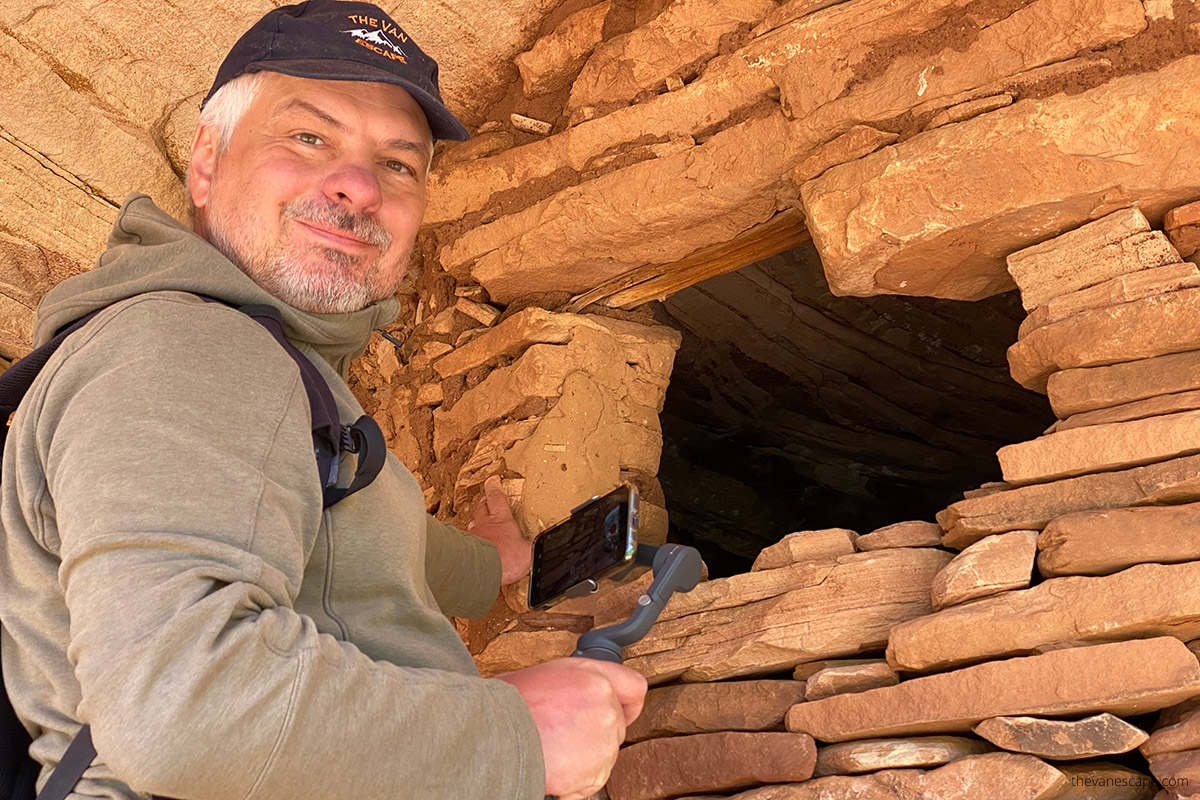
Below is a shot of Chris filming with the DJI Osmo Mobile 6 at Bears Ears National Monument in Utah.


Pros and Cons of DJI Osmo Mobile 6
DJI Osmo Mobile 6 Pros
DJI Osmo Mobile 6 Cons
DJI Osmo Mobile 6 Review – Summary and the Verdict
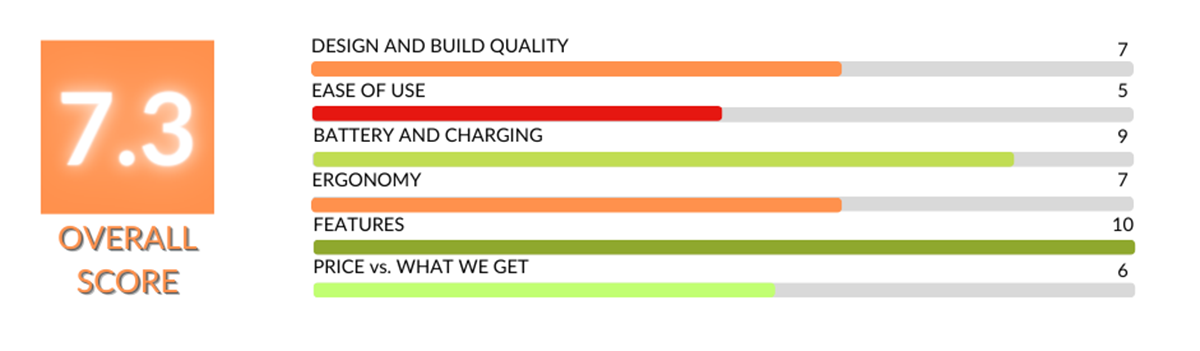
Let’s wrap up this review with some honest thoughts. This isn’t a sponsored post—we bought the DJI Osmo Mobile 6 ourselves, so you’re getting our real opinion.
We like this gimbal—but not everything about it.
The pros? It offers tons of features. ActiveTrack 5.0 is our favorite. It works amazingly well and is easy to use. You don’t need to be a pro to track a moving subject. This feature alone makes the Osmo Mobile 6 worth considering. Great job, DJI.
The DJI Mimo app is another plus. If you already use other DJI gear, like a drone, the interface will feel familiar. That’s a big help. We also like the overall design. The grip is good, and the buttons become intuitive over time.
Now for the downsides
There are many features—but most of them are hard to use. We’re not professional videographers, and it shows. The learning curve is steep. We spent weeks figuring things out. If you don’t have the time or patience, it might feel overwhelming.
Another issue is using your phone to film. On one hand, it’s great—you don’t need to buy a separate camera. But on the other hand, it means you can’t use your phone for anything else while recording. And you’ll often need to recalibrate the gimbal to keep your shot level. That gets annoying fast. Honestly, I might need to check DJI forums for a solution—but I haven’t yet.
Verdict
Despite all that, we’re happy we added this gimbal to our road trip gear. We use it, and we’ll keep using it—especially in places where drones aren’t allowed.
If you want better, smoother videos from your phone, the DJI Osmo Mobile 6 is a solid option. It’s especially useful for travelers, road trippers, and content creators who want more control and stability while keeping their gear light.
So, would we recommend it? Yes—with a few caveats. Be ready to spend some time learning it. But once you do, the results can be great.
Do You Like It? Pin It For Later!

